USB-C Video Connection for the Infra Range System
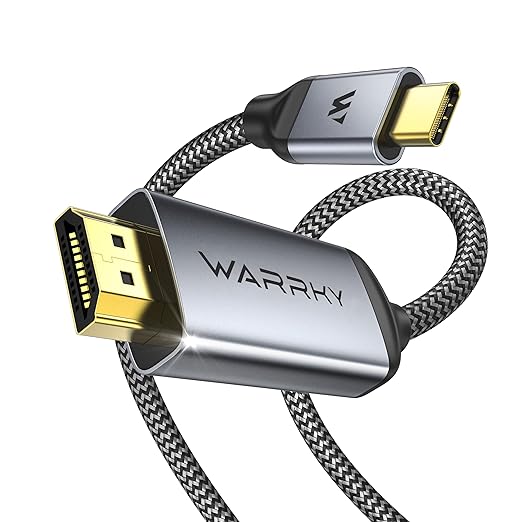
The Recommended USB-C to HDMI Cable connects a compatible USB-C smartphone, tablet, laptop, or computer directly to an HDMI-equipped projector or display.
Within an Infra Range setup, the cable is used to display the Infra Range application on the projection screen while the compatible smartphone camera observes the training area.
Because the cable has USB-C on one end and full-size HDMI on the other, no separate HDMI cable or USB-C adapter is required.
How It Works
Connect the USB-C end of the cable to a compatible phone or other video-output device.
Connect the HDMI end directly to the HDMI input on the projector.
Select the correct HDMI input on the projector. When the connected device supports video output, the device screen should appear through the projector.
Launch the Infra Range application and complete the normal camera-positioning and calibration process before beginning training.
Critical Phone Compatibility Requirement
Not every USB-C phone supports video output.
The connected phone, tablet, or computer must support DisplayPort Alternate Mode, commonly called DP Alt Mode, through its USB-C port. Compatible Thunderbolt ports may also support video output.
A USB-C port used only for charging or basic data transfer will not send an HDMI video signal through this cable.
Before purchasing, verify that your exact phone model supports wired external-display output through USB-C.
Recommended Use
This cable is recommended for:
- Connecting a compatible smartphone to an HDMI projector
- Displaying the Infra Range application on a projection screen
- Wired video output without Wi-Fi casting
- Infra Range setup and calibration
- Indoor infrared dry-fire training
- System testing and demonstrations
Compatibility Requirements
A complete Infra Range setup normally requires:
- A compatible USB-C iPhone, Android device, tablet, or computer
- USB-C video-output support through DP Alt Mode or a compatible Thunderbolt port
- The Infra Range mobile application
- A projector with an available HDMI input
- A projection screen or suitable projection surface
- A stable phone tripod or mounting system
- A compatible infrared lens filter
- A compatible phone filter clip
- A compatible infrared training laser
- A safe indoor training area
Important: Connector shape alone does not confirm compatibility. Verify the video-output capabilities of your exact device model before ordering.
Connection Instructions
- Turn on the projector.
- Connect the HDMI end of the cable to the projector.
- Connect the USB-C end to the compatible smartphone or other source device.
- Select the correct HDMI input on the projector.
- Confirm that the device display appears on the projection screen.
- Open the Infra Range application.
- Position the smartphone and complete calibration.
If no image appears, verify that the projector is using the correct HDMI input and that the connected device supports USB-C video output.
Video and Audio Support
The Amazon listing advertises video resolutions up to 4K at 60Hz when used with compatible source devices and displays.
Actual resolution, refresh rate, audio support, and image quality depend on the connected device, projector, display settings, operating system, and source content.
Infra Range does not require 4K resolution to operate. The cable is recommended primarily because it provides a direct and stable wired connection to the projector.
Cable Construction
- USB-C male connector
- Full-size HDMI male connector
- Approximately 6-foot length
- Braided outer cable jacket
- Aluminum connector housings
- Gold-plated connector contacts
Specifications, materials, and product revisions remain controlled by the manufacturer and Amazon seller.
What Is Included
- One USB-C to HDMI cable
- Cable-management fastener, when included by the seller
Package contents are determined by the Amazon seller and should be confirmed on Amazon before purchasing.
What Is Not Included
- Smartphone, tablet, laptop, or computer
- Projector
- Projection screen
- Phone tripod or mount
- Infrared lens filter
- Phone filter clip
- Infrared training laser
- Infra Range Complete Starter Kit
Troubleshooting
No image on the projector: Confirm that the connected USB-C device supports DP Alt Mode video output and that the projector is set to the correct HDMI input.
Image disconnects or flickers: Disconnect and reconnect both ends, restart the source device and projector, and verify that both ports are clean and secure.
Phone charges but does not display video: Charging support does not confirm video-output support. Check the specifications for the exact phone model.
Streaming application does not display: Individual streaming services, protected media, applications, and devices may impose their own external-display or content-protection restrictions.
Amazon Purchase and Fulfillment
This product is sold through a third-party Amazon listing. Product pricing, availability, seller information, delivery estimates, package contents, warranties, returns, and customer service are determined by Amazon and the applicable seller.
Review the product specifications and your device’s USB-C video-output support carefully before completing your purchase.
Affiliate disclosure: As an Amazon Associate, Infra Range earns from qualifying purchases at no additional cost to you.
Important Safety and Handling Notice
- Do not sharply bend, crush, pull, or place heavy objects on the cable.
- Insert and remove connectors by holding the connector housing rather than pulling the cable.
- Keep the cable away from excessive heat, moisture, and walking paths.
- Route the cable so it does not create a trip hazard around the training area.
- Disconnect damaged cables from power and equipment immediately.
- Use all Infra Range equipment only in a safe, lawful, and controlled environment.
Reviews
There are no reviews yet.